Thursday, 3 June 2021

Are you new to OneDrive on Windows 10? If so, use this guide to get started with the cloud storage service.

OneDrive is the cloud storage service that Microsoft offers to store all your files securely in one place, which you can then access from virtually anywhere.

The service works like a traditional external drive, but with the difference that it is available through the internet and offers additional features. For example, since it works across devices and platforms, you can create a file on one device and pick up where you left off on another (desktop computer, laptop, tablet, or phone) without having to transfer anything to a USB flash drive or email it to yourself, which not only creates extra steps but also creates unnecessary copies. Also, OneDrive makes it easy to share content with other people and collaborate in real-time using the Microsoft 365 integration.

If you use a Windows 10 device, you get even more features. When setting up the service with a Microsoft account on your computer, you can also sync and roam your system preferences and many settings (including BitLocker recovery keys) across your devices. Files On-Demand is also another cool feature that allows you to access all your files without downloading them, saving a lot of local storage. And since the data is stored in the cloud, you can use it as a data recovery mechanism if the computer breaks or is stolen.

In this Windows 10 guide, we will walk you through the process to create an account, set up the client, and perform everyday tasks with OneDrive.

How to create account for OneDrive

Whether you use Windows 10 or macOS or have an iPhone or Android phone, you will need a Microsoft account to use OneDrive. If you have a @outlook.com, @live.com, or @hotmail.com email address, or Xbox network account, you already have a Microsoft account, and you can use it to access the cloud storage service.

To create a new OneDrive account, when you don't have a Microsoft account, use these steps:

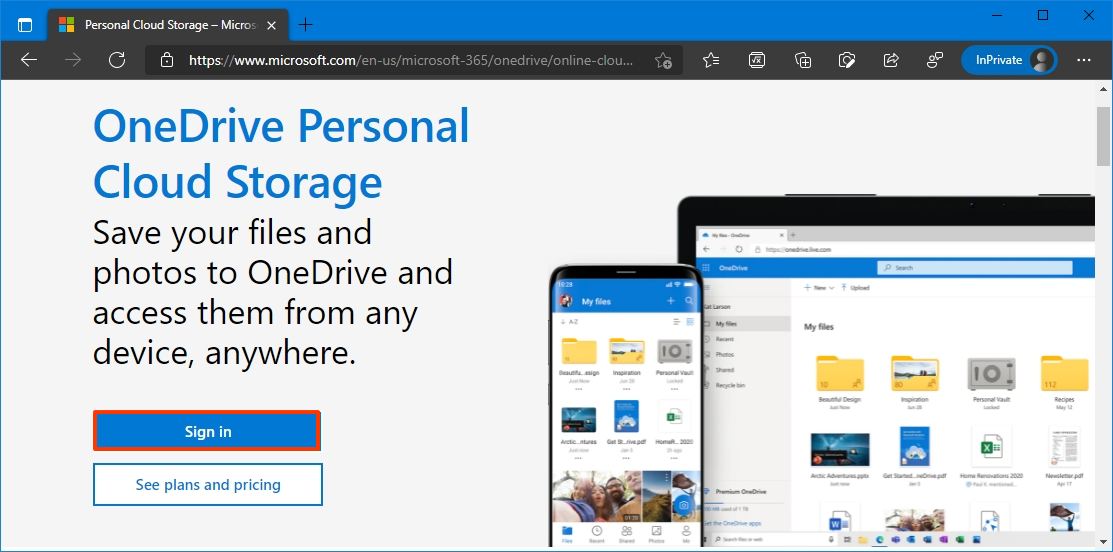
  1. Open OneDrive website.
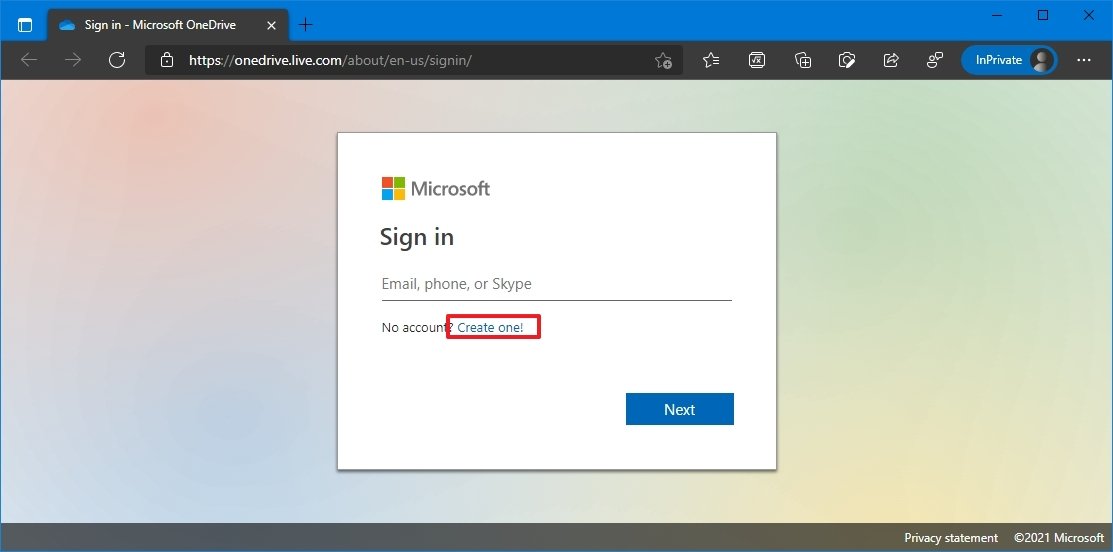
  2. Click the Sign in button.

  3. Click the Create one option.

    Quick tip: If you have an email from another service (for example, Gmail), you can use it to create an account instead of getting a new address.

  4. Confirm an existing email address from another system — for example, Google Gmail.
  5. (Optional) Click the Get a new email address option if you do not have one or want to use something different.
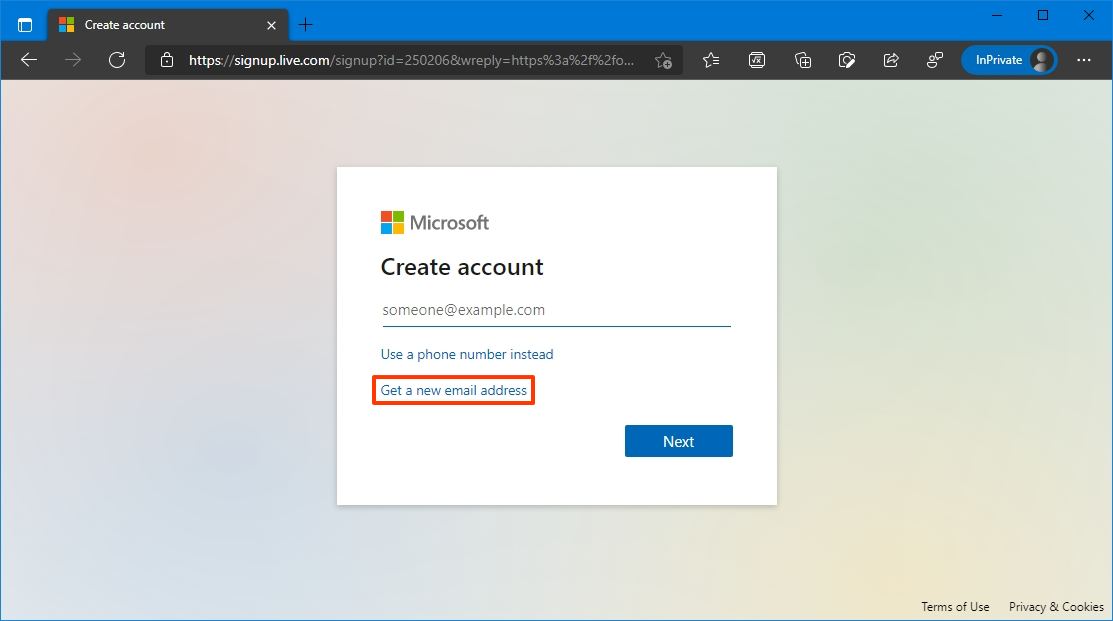
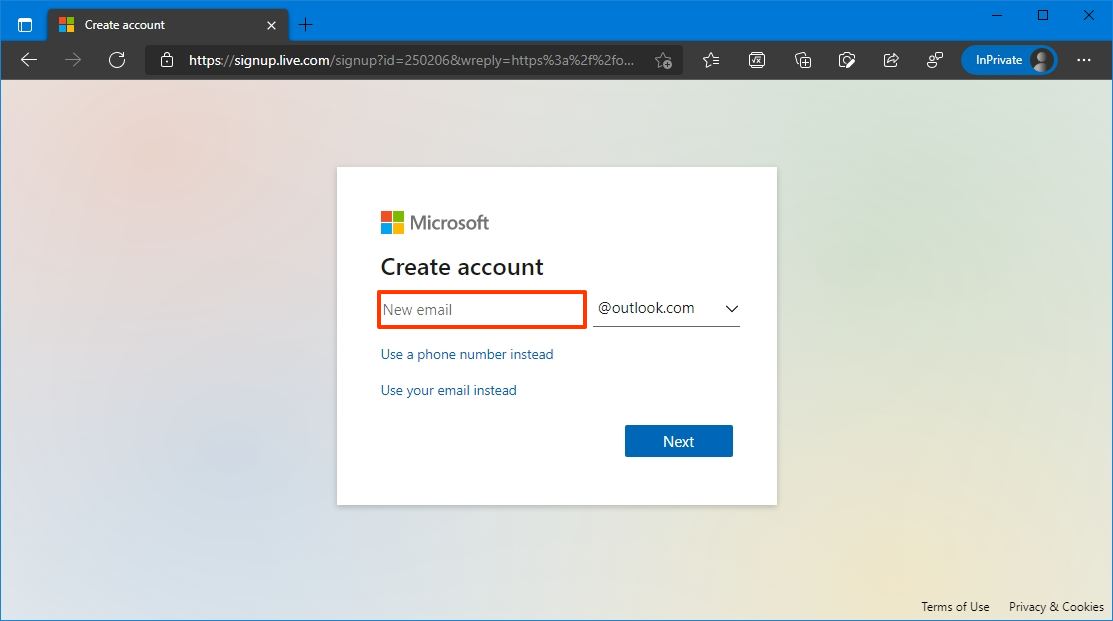
  6. Create a new email address.

  7. Select the @outlook.com option.
  8. Click the Next button.
  9. Continue with the on-screen directions to complete the process.

Once you complete the steps, you can connect the account to Windows 10 and start using OneDrive.

How to set up OneDrive on Windows 10

On Windows 10, when setting up a new installation, OneDrive is usually automatically configured once you add a Microsoft account to create a system account. However, if this is not the case, or you are setting up the cloud service with a new account, you will need to configure the service manually.

Setting up OneDrive on your device is a straightforward process. Here's how:

  1. Open Start.
  2. Search OneDrive and click the top result to open the app.

    Quick tip: If you do not find OneDrive on the Start menu, the client is probably not installed. You can download the OneDrive client offline installer from Microsoft and double-click the file to install it. Also, if the setup process does not appear, right-click the cloud icon from the notification area and select the Sign in button.

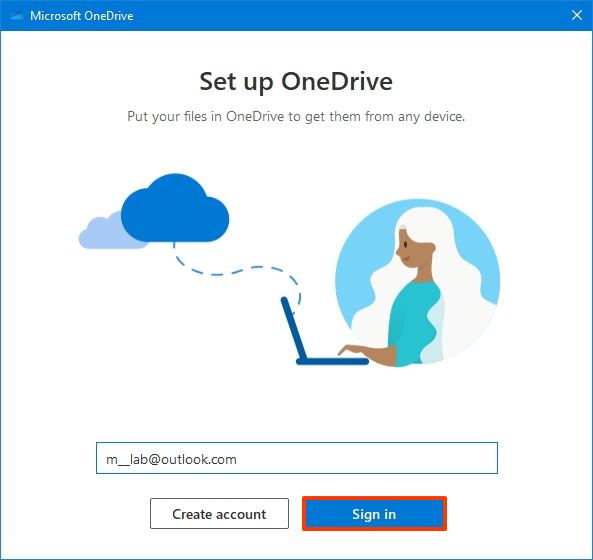
  3. Confirm the Microsoft account address.
  4. Click the Sign in button.

  5. Confirm your account password.
  6. Click the Sign in button again.
  7. (Optional) Click the Change location option to specify a different folder to store the cloud files. (Usually, the default location is recommended.)
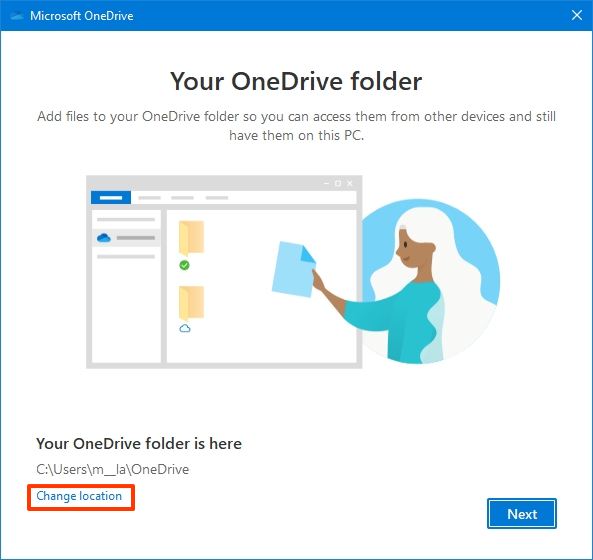
  8. Click the Next button.
  9. (Optional) Clear the Desktop, Documents, and Pictures selections.
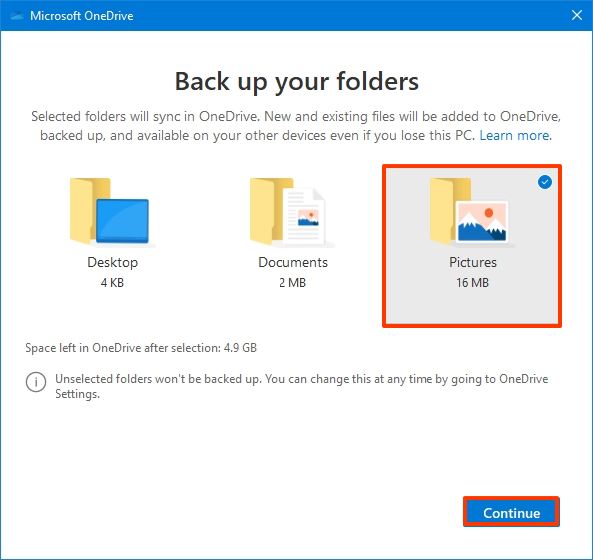
    Quick note: OneDrive offers the ability to back up your system profile folders. Although it is recommended to use this option, you may not have enough space to upload all your files if you have the free version of the service. If this is the case, skip this option until you sign up for a subscription plan. You can always access the backup settings from the Backup tab in the OneDrive settings.

  10. Click the Skip button (or Continue button).
  11. Click the Not now button.
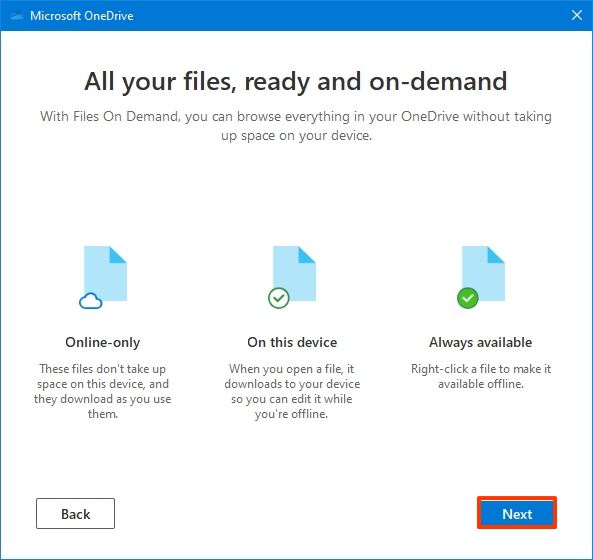
  12. Click the Next button.
  13. Click the Next button again.
  14. Click the Next button one more time.

  15. Click the Later button.
  16. Click the Close button.

After you complete the steps, OneDrive will be ready to start uploading files.

How to upload files to OneDrive

OneDrive connects seamlessly with File Explorer to make the process of uploading files super easy.

To upload documents and other files to OneDrive on Windows 10, use these steps:

  1. Open File Explorer.
  2. Click on OneDrive from the left pane.

    Quick note: On devices with multiple OneDrive accounts, the folders may be named differently. For example: "OneDrive — Personal" for your regular account, and "OneDrive — Family" for business accounts.

  3. Snap the OneDrive folder to the left side (Windows key + left arrow).
  4. Open another instance of File Explorer (Windows key + E).
  5. Navigate to the folder with the content you want to upload.
  6. Snap the folder with the local files to the right side (Windows key + right arrow).
  7. Drag and drop each file and folder you want to upload to the OneDrive folder (left).
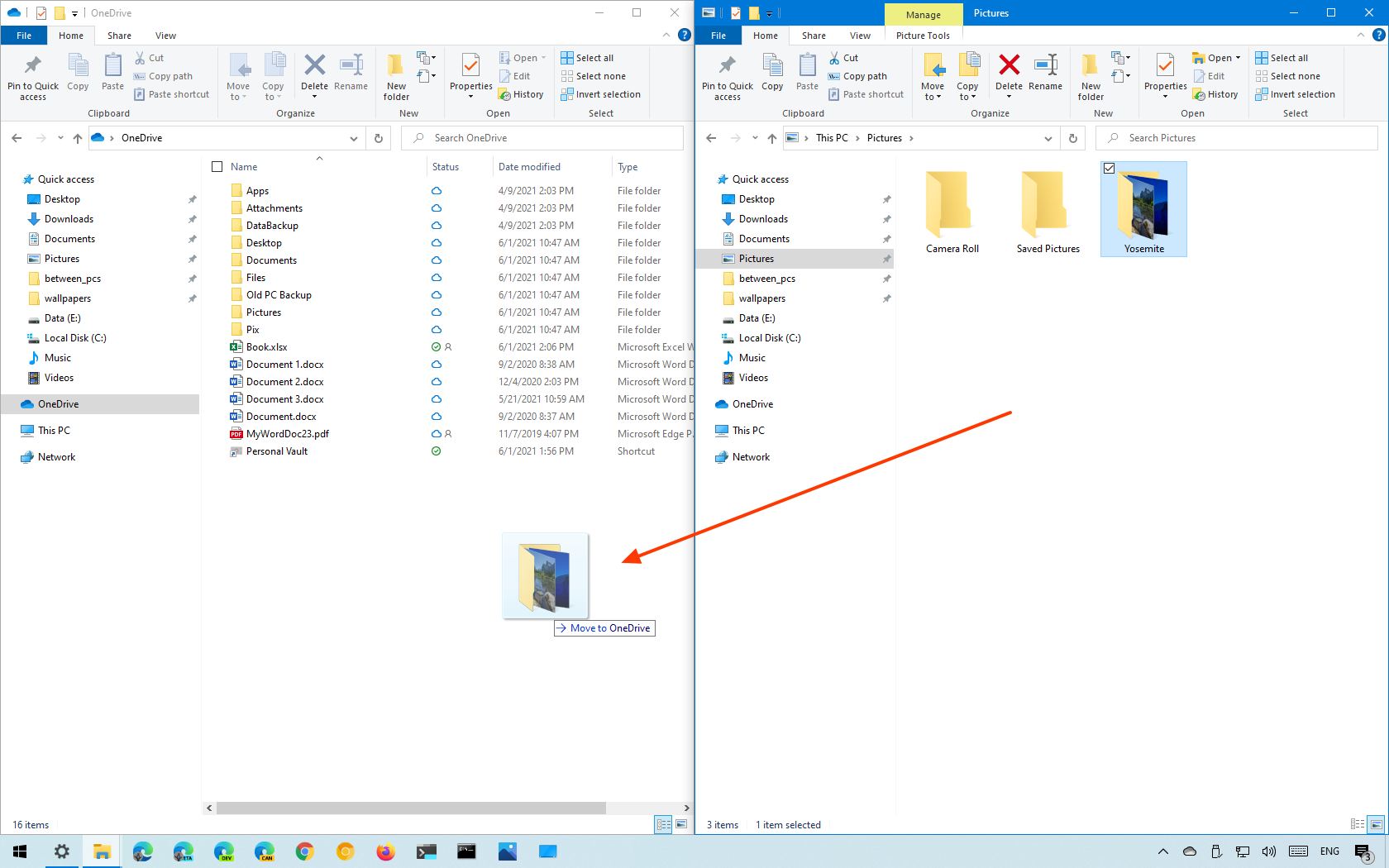
Once you complete the steps, the files and folder in the OneDrive location will automatically sync to the cloud service in the background.

Of course, this is only one way to upload files. You can always cut and paste the files into the OneDrive folder. Or you can select the files and use the "Move to" option available in the "Home" tab of File Explorer.

In the future, instead of continually making transfers manually, remember that within the application, you can always save files directly into the OneDrive folder.

If you have many files, 5GB of storage may not be enough with the free account. As a result, we recommend opting into one of the Microsoft 365 plans as it comes with 1,000GB of OneDrive storage and additional perks. For instance, with the subscription, you get access to the Office apps, Microsoft Family Safety, Microsoft Teams (consumer), and other features like Microsoft Editor, PowerPoint Presenter Coach, Money in Excel, and more.

Furthermore, with the subscription, you can also purchase an addition 1TB of storage for a total of 2TB.

Microsoft 365

Get subscribed

From $70 at Microsoft

Microsoft 365 (Office 365) gives you full access to all the apps and perks, such as 1TB OneDrive storage and Skype minutes. You can also install Word, Excel, PowerPoint, Outlook, and other apps on up to five devices, and depending on the subscription, you can share the account with up to six people.

How to select folders available locally in OneDrive

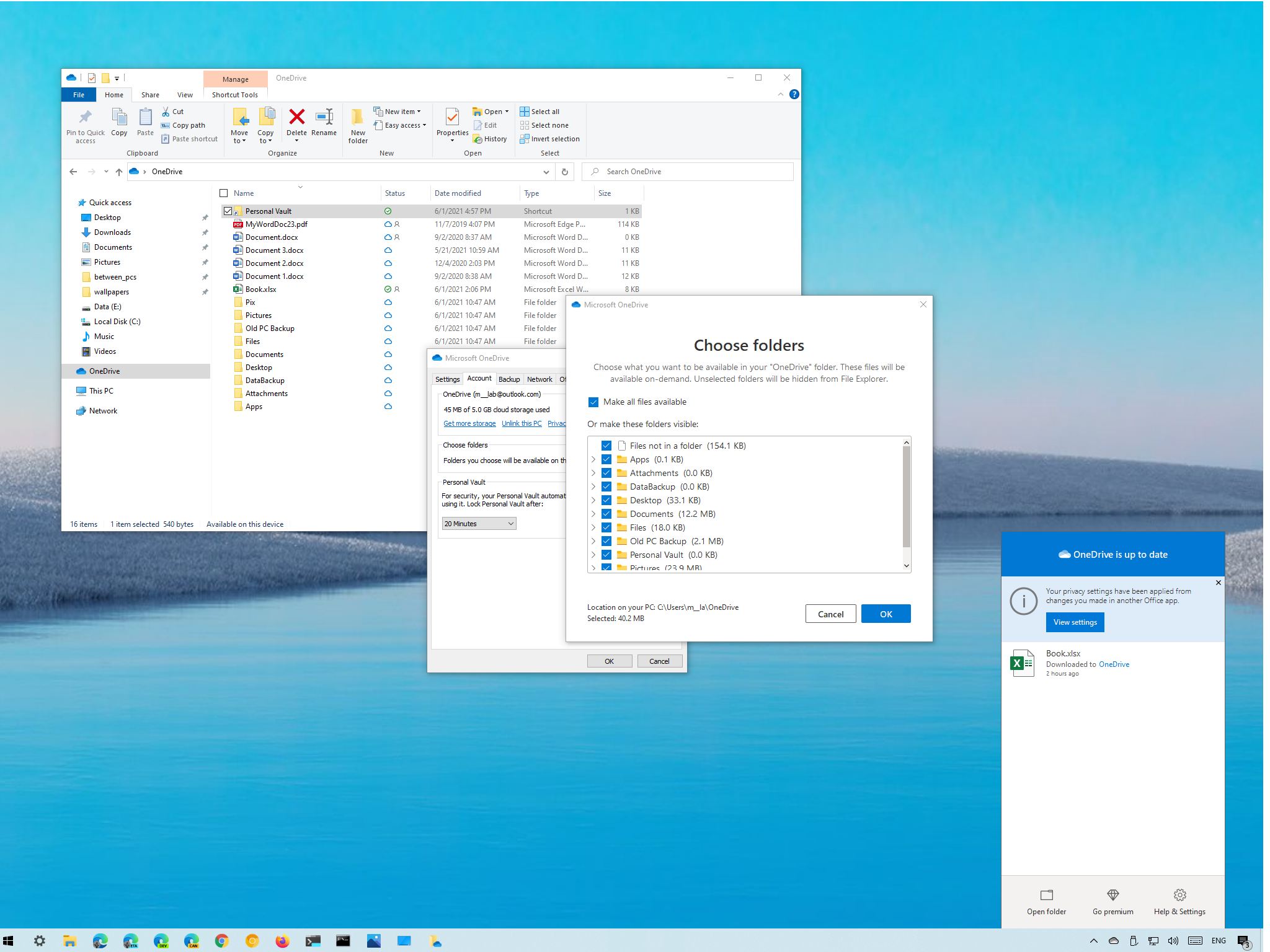
You can also choose which folder will be accessible locally from File Explorer.

To choose the OneDrive folders available through File Explorer on Windows 10, use these steps:

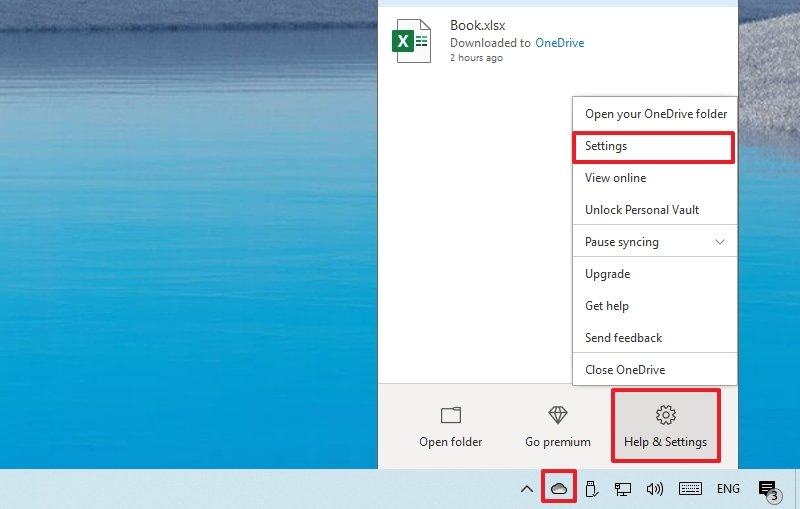
  1. Click the OneDrive (cloud) button from the notification area.
  2. Click the Help & Settings menu.
  3. Select the Settings option.

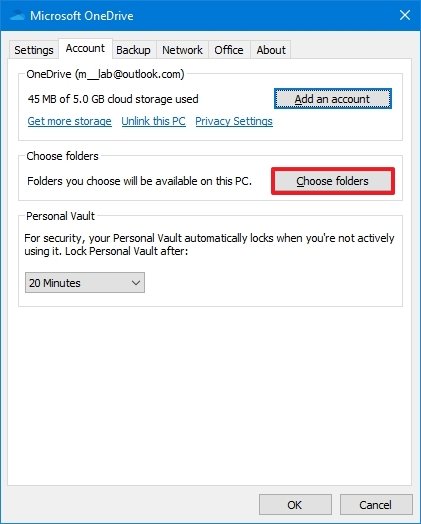
  4. Click the Account tab.
  5. Click the Choose folders button.

  6. Clear the folders you do not want to make available inside File Explorer.
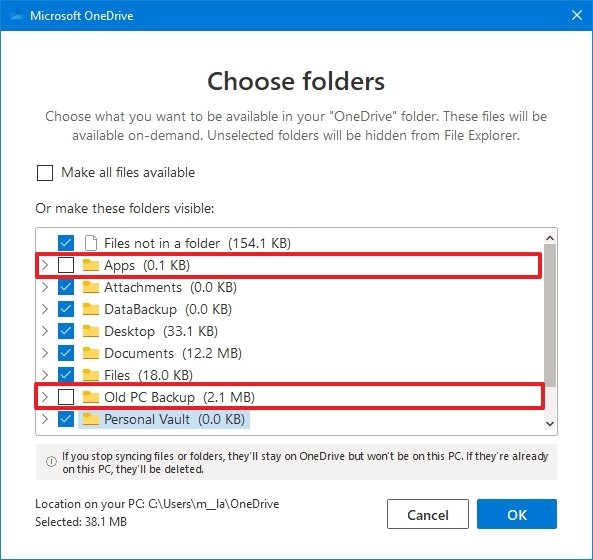
  7. Click the OK button.

Once you complete the steps, only the folders you selected will be available as files on-demand, and any other folder will be hidden from File Explorer.

If you are also using the backup option, you won't be able to customize this feature. If this is the case, you will need to stop the OneDrive backup for those folders before hiding them.

How to determine sync status badges in OneDrive

OneDrive uses at least 10 different badges to indicate the status of the app and file syncing process.

OneDrive icon status

  • Solid white cloud icon — Confirms that OneDrive is running without problems and sync is up to date.
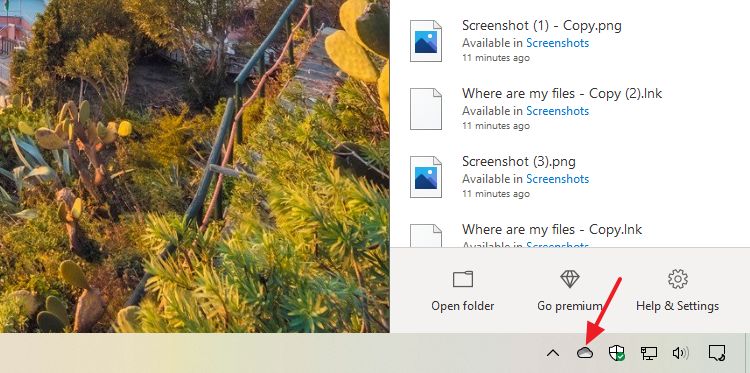
  • Solid blue cloud icon — Indicates a "OneDrive for Business" account is configured. The sync is up to date, and there are no problems.
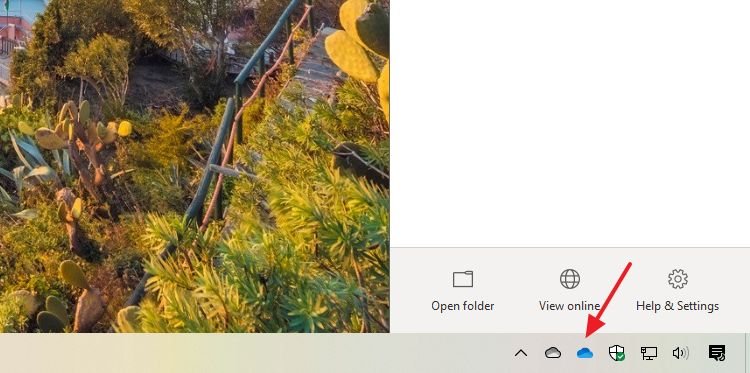
  • Solid gray cloud icon — Lets you know that OneDrive is running, but the account is signed out or not connected to any account.
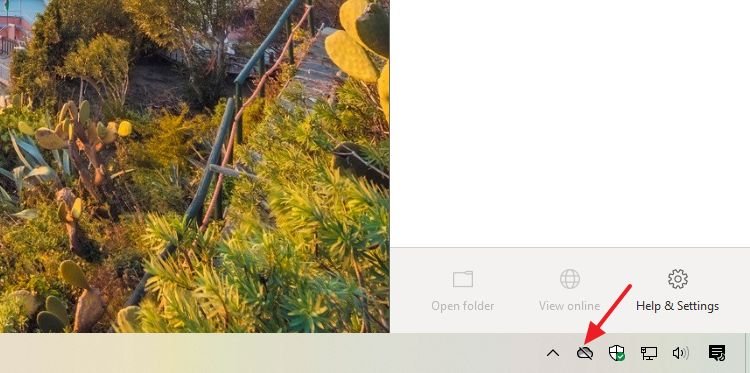
  • Cloud icon with arrows forming a circle — The sync client is actively downloading or uploading files to the cloud.

  • Solid red with white X icon — Lets you know that OneDrive is running, but there are sync problems.

Files and folders statuses

  • White cloud with blue borders icon — Indicates the file is available only with an internet connection, and it is not using space on the local storage. You will need to double-click the file to finish the download and open it with an app.
  • White icon with green borders and checkmark icon — File is available offline. You can open it without an internet connection, and it is using local storage space.
  • Solid green with white checkmark icon — Indicates that you are using the "Always keep on this device" option to ensure important files are available offline.
  • Solid red with white X icon — Indicates a problem trying to sync a particular folder or file.
  • Cloud icon with arrows forming a circle — Indicates a file is currently syncing to the cloud service.

How to use Files On-Demand with OneDrive

OneDrive Files On-Demand is a feature that enables you to access your entire collection of files using File Explorer without having to download them to your device.

When the feature is enabled, OneDrive will only download small pieces of information to make the content visible on the computer, allowing you to sync hundreds of gigabytes without utilizing the local space quickly. However, you will need an internet connection to open files that you do not explicitly make available offline or did not already open.

Files On-Demand should come enabled by default, but if it is not, you can enable it with these steps:

  1. Click the OneDrive (cloud) button from the notification area.
  2. Click the Help & Settings menu.
  3. Select the Settings option.

  4. Click the Settings tab.
  5. Under the "Files On-Demand" section, check the Save space and download files as you use them option.
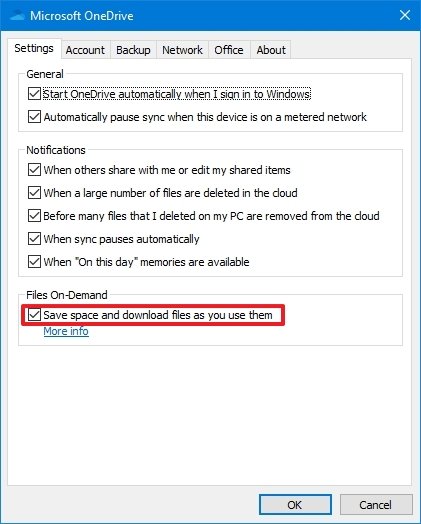
    Quick tip: In the same way, if the feature is not for you, then clear the option to disable it.

  6. Click the OK button.

Once you complete the steps, OneDrive Files On-Demand will be enabled on the device.

Manage Files On-Demand

You can also manage your files in different ways. Here's how:

  1. Open OneDrive folder.
  2. Right-click the file or folder and choose one of the options:

    • Free up space: Makes a file available only with an internet connection while saving hard drive space.
    • Always keep on this device: Ensures the content is always available offline, but it'll use hard drive space.
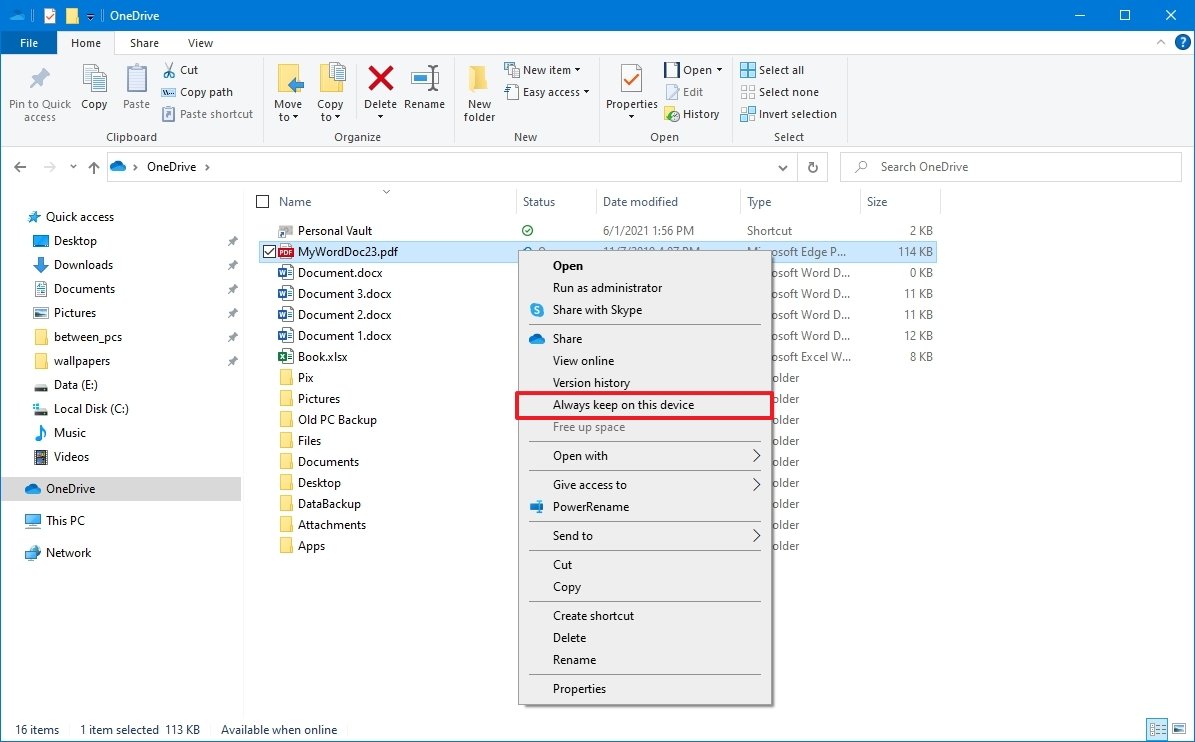
After you complete the steps, depending on your selection, the files will always be kept on the device or only with an internet connection to save storage space.

How to share files with OneDrive

You can also use OneDrive to share files with family, friends, or colleagues. Instead of copying files using a USB flash drive or sending emails, the cloud storage service lets you share virtually any files with anyone. This is possible by creating a secure link that others can use to access the content, and you can revoke it at any time.

To share files with OneDrive on Windows 10, use these steps:

  1. Open OneDrive folder.
  2. Right-click the file and select the Share option.
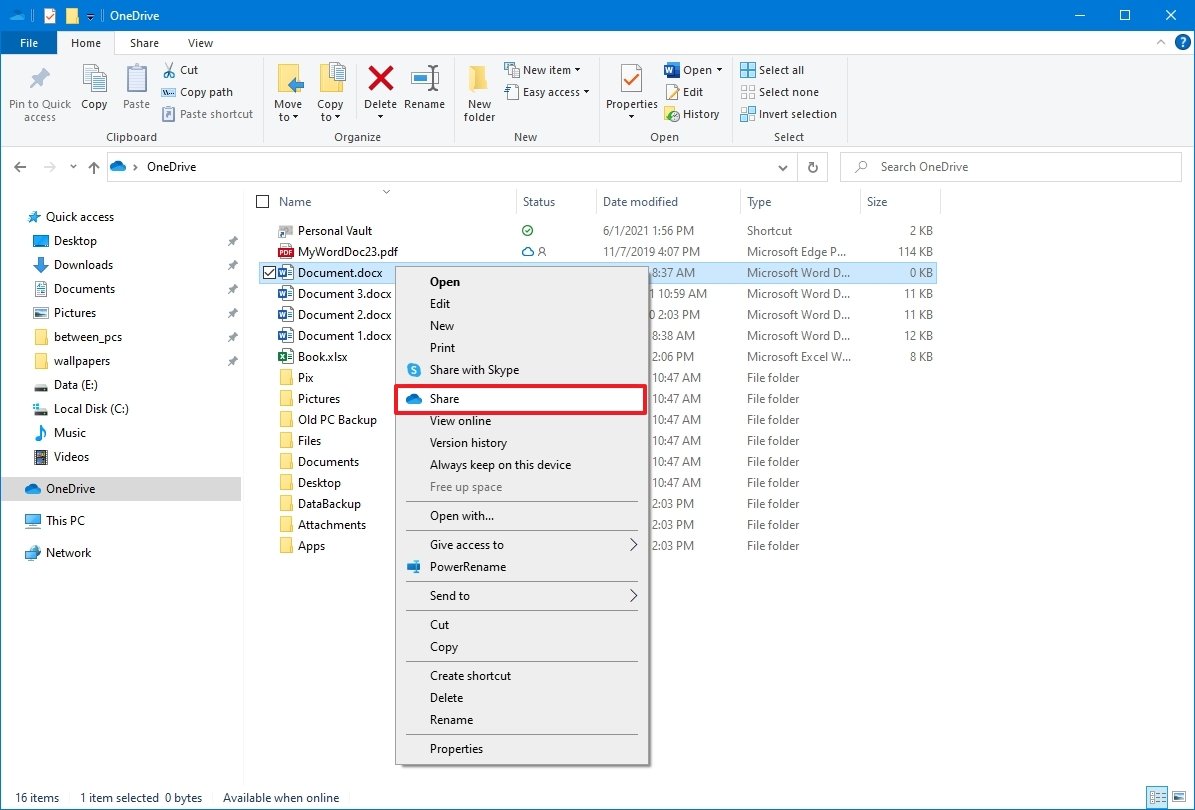
  3. (Optional) Click the Anyone with the link can edit option.
  4. Clear the Allow editing option if you want someone else to only view the file.
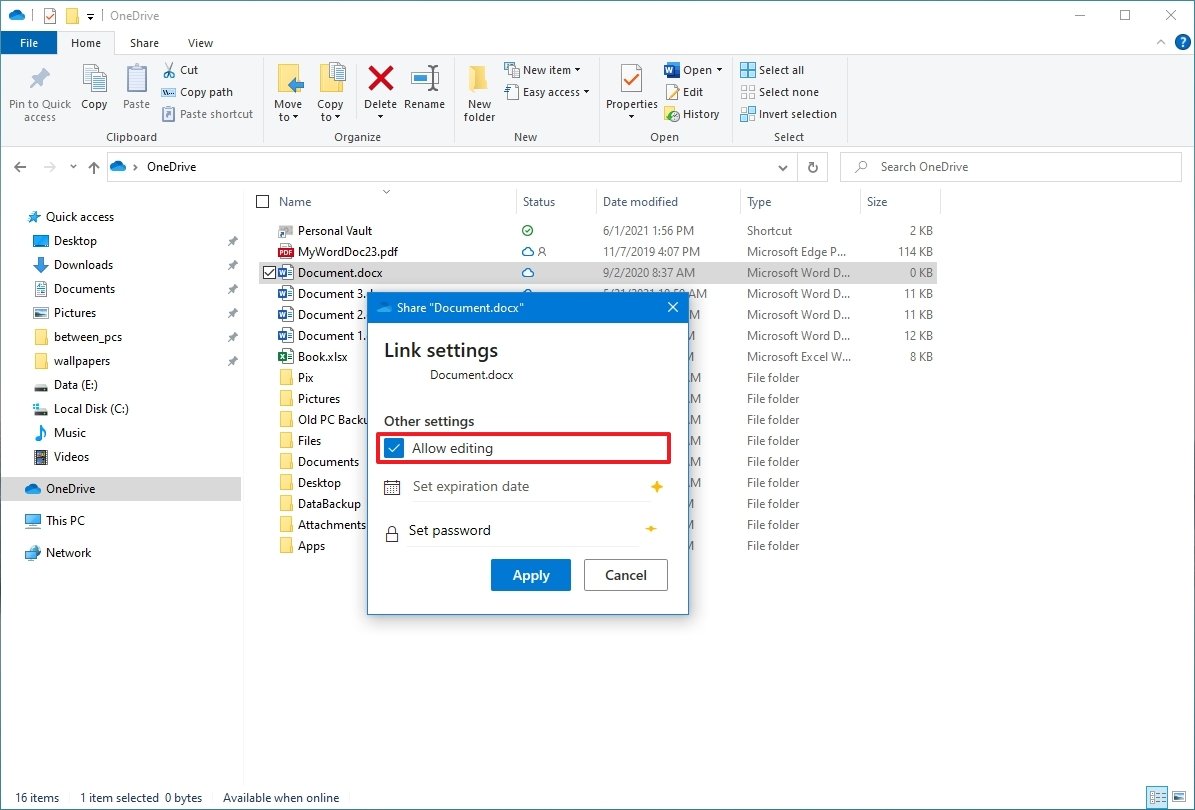
    Quick tip: If you have a Microsoft 365 subscription or OneDrive plan, you can also set the expiration date and password for the file you are sharing.

  5. Click the Apply button.
  6. Specify the email address if you'll be sending the link to another person. Or click the Copy Link option to copy the link to the clipboard.

  7. Click the Send button.
  8. Click the Close button.

After you complete the steps, the recipient will receive the link to access the shared files. If you copied the link, you could paste the link on an email or social media post to share the content.

Stop sharing file in OneDrive

To stop sharing a particular file stored in the cloud, use these steps:

  1. Open OneDrive folder.
  2. Right-click the shared file and select the Share option.

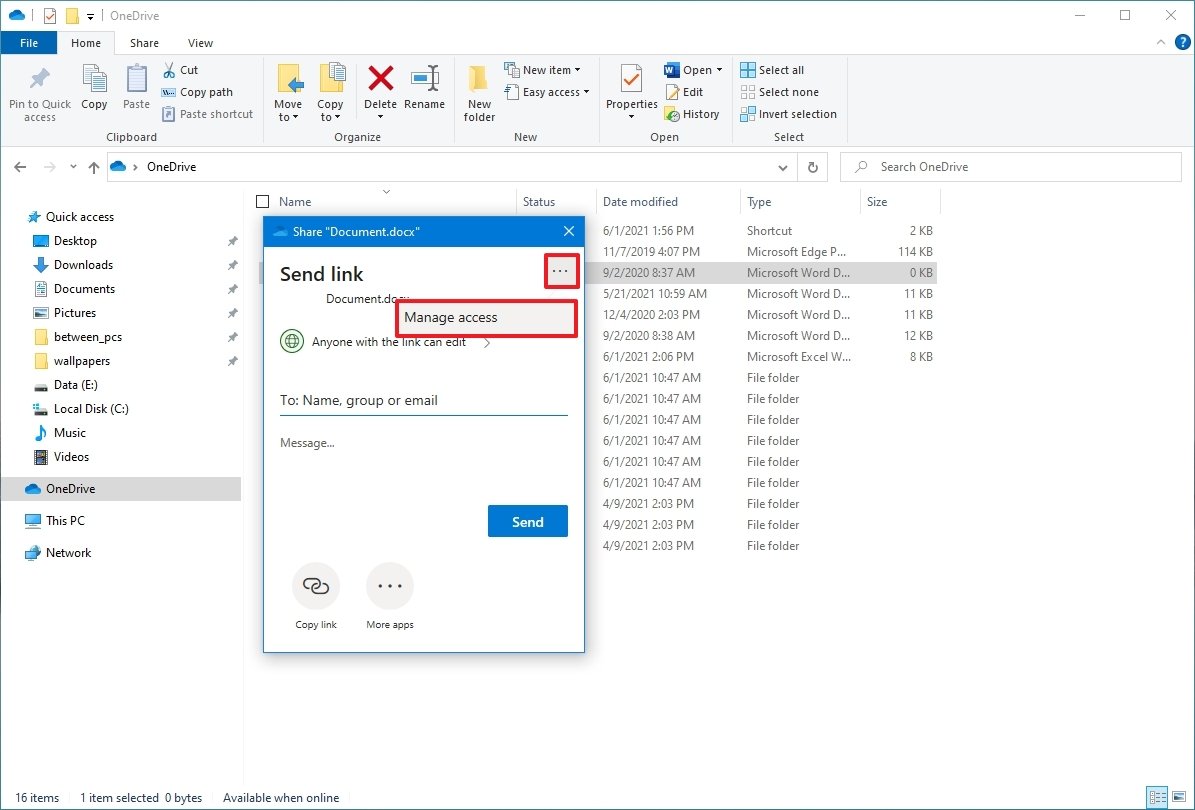
  3. Click the three-dotted button in the top-right corner.
  4. Select the Manage access option.

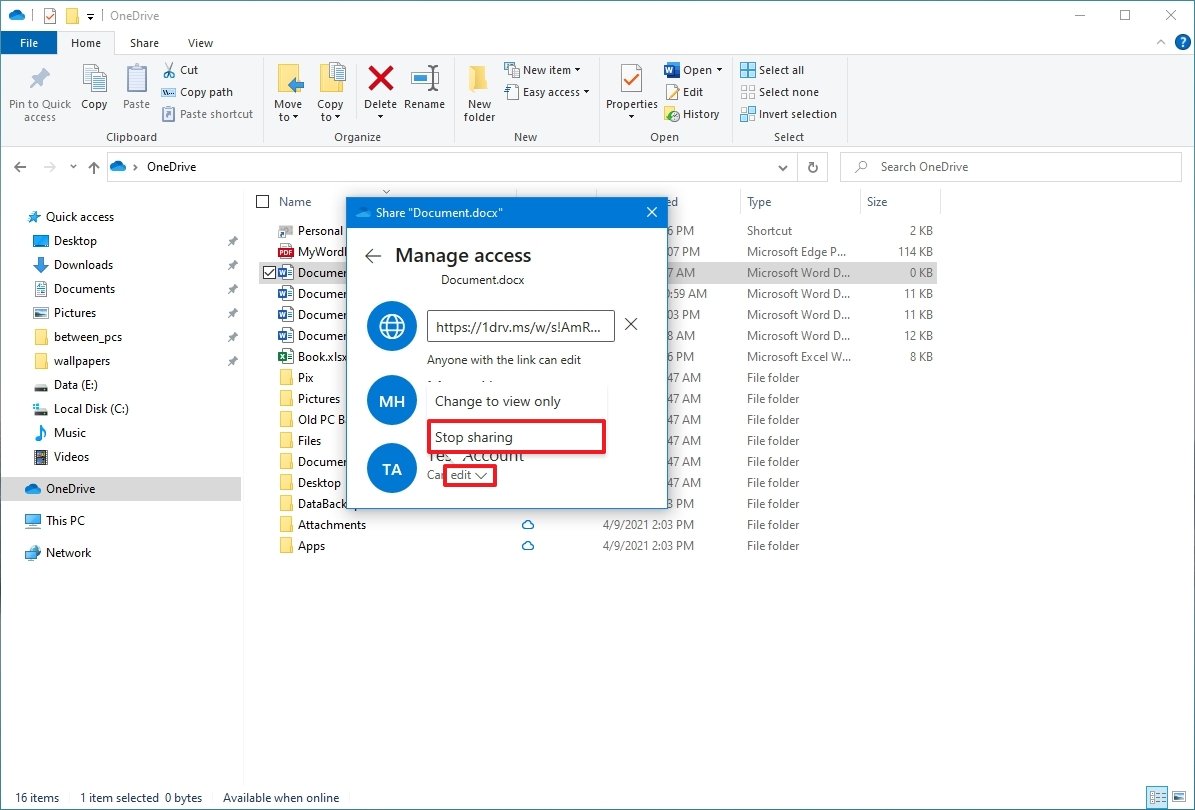
  5. Click the Remove link (X) button.
  6. Click the Edit button for the email account for which you want to stop access.
  7. Click the Stop sharing option.

  8. Repeat steps No. 6 and 7 to remove other users (as necessary).

Once you complete the steps, the files will no longer be accessible by other people.

How to restore previous version of files in OneDrive

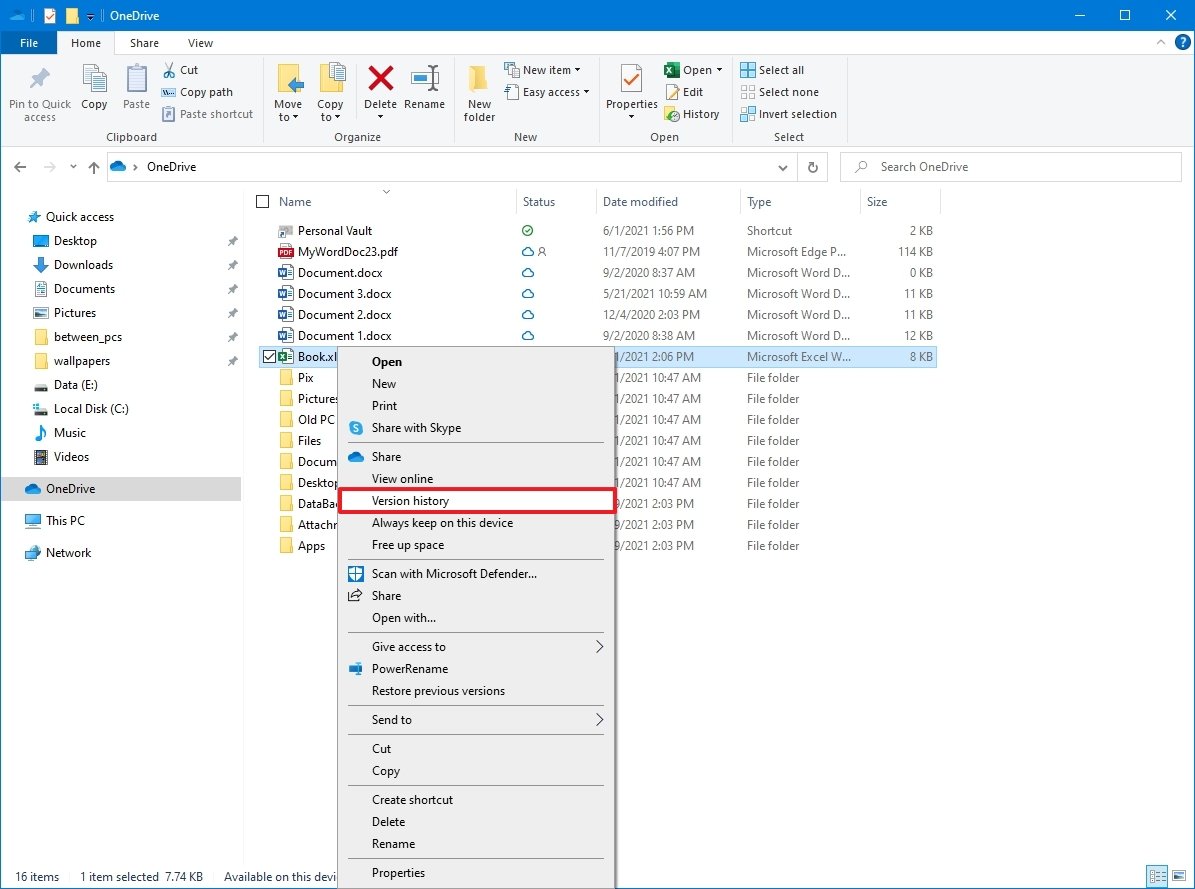
Similar to the web version, the OneDrive integration with File Explorer includes "version history," a feature that allows you to view and restore older versions of files, including Office documents, pictures, videos, and virtually any type of files, including folders.

To view and restore a previous version of a file in OneDrive, use these steps:

  1. Open OneDrive folder.
  2. Right-click the shared file and select the Version history option.
    Quick tip: If the file is open, close it before restoring a previous version.

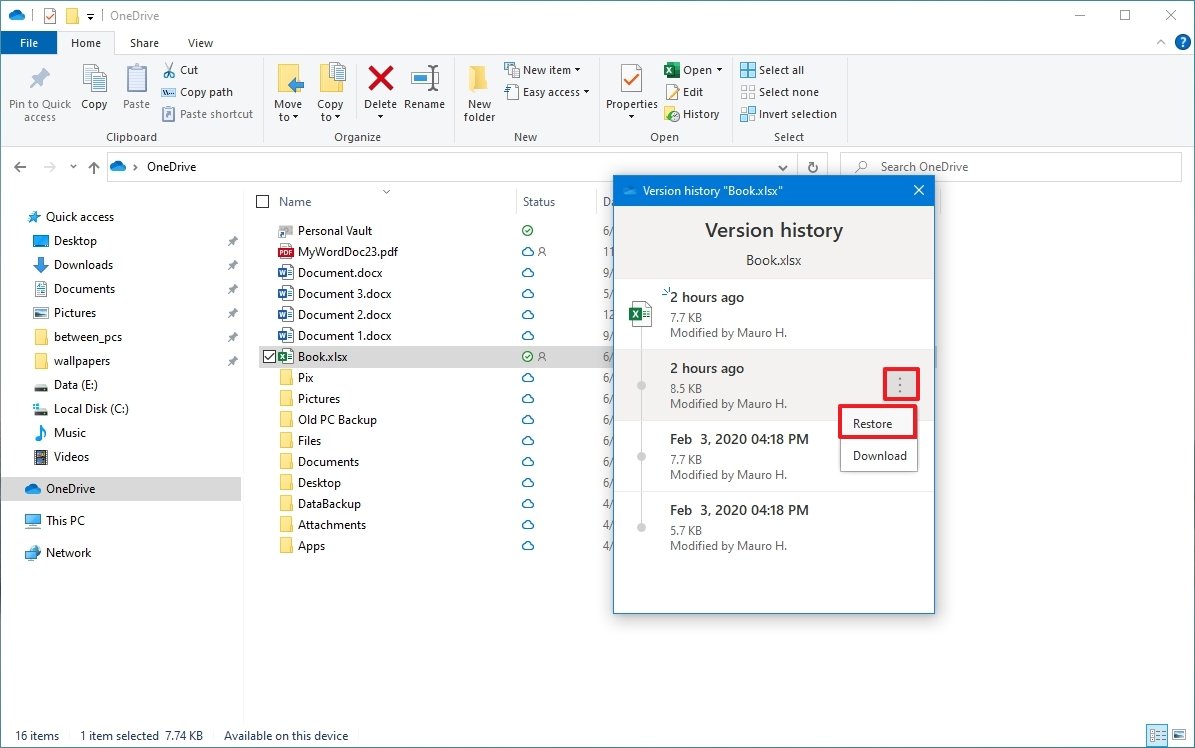
  3. View all the available versions of the file.
  4. Select the version you want to restore and click the three-dotted button.
  5. Click the Restore option.

After you complete the steps, the version you selected will replace the older version of the file available in the cloud storage service.

How to set up Personal Vault with OneDrive

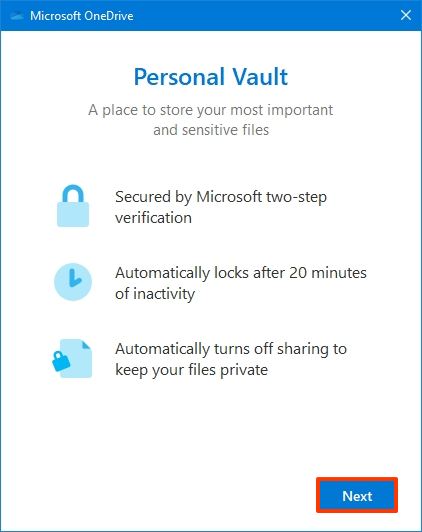
Personal Vault is a feature available for OneDrive users that provides a protected area to store sensitive files (such as confidential documents, personal records, pictures, etc.) using more robust security with two-factor authentication like biometrics, PIN, as well as email or phone code, in addition to the typical sign-in process to access the service.

To set up OneDrive Personal Vault, use these steps:

  1. Click the OneDrive (cloud) button from the notification area.
  2. Click the Help & Settings menu.
  3. Click the Unlock Personal Vault menu.

    Quick note: You may also see a Get started button when opening the OneDrive app, which can also help you set up the feature.

  4. Click the Next button.

  5. Click the Allow button.

  6. Continue with the on-screen directions to verify your account.

Once you complete the steps, you can start saving files to the secure area of OneDrive. If you have additional devices, you will need to repeat the instructions anywhere you want to access the files.

The feature is available at no extra cost, but you will need a Microsoft 365 subscription to store more than three files. (You can always get around this limitation using this workaround.)

The feature is part of the client, but you can enable it on your OneDrive account.

If you want to access the files again, you can open Personal Vault by double-clicking the icon inside the OneDrive folder and following the on-screen directions to sign in. The folder will eventually close automatically, but you can lock it by right-clicking the icon and selecting the Lock Personal Vault option. (You can learn more about using this security feature with this guide.)

How to check storage usage in OneDrive

Microsoft offers a free tier of OneDrive, but it includes only 5GB of space. If you plan to store a lot of data (including photos and videos), you can always upgrade your account to 100GB by opting into a $1.99 per-month subscription.

If you need even more storage, you can switch to a Microsoft 365 Personal subscription, which includes 1TB of OneDrive storage and access to the suite of Office applications and much more.

To view the current storage usage of OneDrive, use these steps:

  1. Click the OneDrive (cloud) button from the notification area.
  2. Click the Help & Settings menu.
  3. Click on Settings.

  4. Click the Account tab.
  5. Under the "OneDrive" section, confirm the storage usage and how much space you have left.
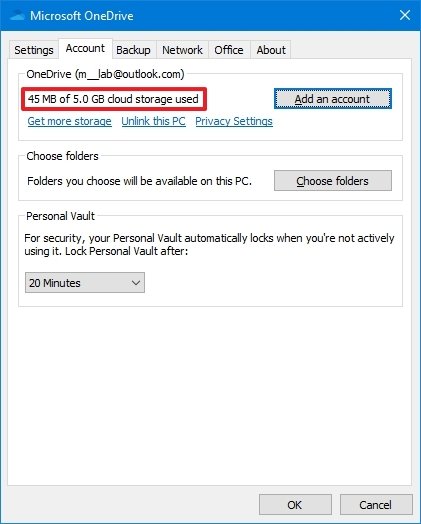
If you are running low on space, click the Get more storage link to open OneDrive on the web to select the subscription plan that best fits your situation.

More Windows 10 resources

For more helpful articles, coverage, and answers to common questions about Windows 10, visit the following resources:


0 comments:

Post a Comment

About

Privacy Policy

ShortNewsWeb

Blog Archive

Categories

10 Hacks Every Student Should Know (1) 10 Shows Like 'The Last of Us' You Should Watch Next (1) 11 of the Best Tech Gifts for Teens Still on Sale After Cyber Monday (1) 21 of the Weirdest Things You Can Bring on an Airplane (1) A Four Pack of These TSA-Approved Luggage SmartLocks Is on Sale $80 Right Now (1) After 90 Days on a Vibration Plate (1) and Artists Love It (1) and Here's the Gear That Made My Apartment Into a Video Studio on a Budget (1) and Here's What I Love (and Hate) About Walking Pads (1) and I Can't Recommend the Kindle Colorsoft (1) and It’s 30% Off for Memorial Day (1) and It's Half Off for Prime Day (1) and More (1) and Peloton’s Stretching Classes Are a Huge Help (1) and These Are 30% Off for Prime Day (1) and These Are the Top 10 Tech Sales This Week (3) and This Is My Favorite Stair Stepper Workout (1) and You Should Turn It Off (1) Android 16 Is Now Officially Available on These Devices (1) Android 16 Just Put Parental Controls Directly on Your Kid's Phone (1) Android 16's Latest Beta Adds a Long-Awaited Lock Screen Feature (1) Android's Canary Channel Lets You Try New Features Before Anyone Else (1) Apple Has Improved the Powerbeats Pro 2's Heart Rate Issues (but It’s Still Not Enough) (1) Apple Is Working On These Five New Satellite Features for the iPhone (1) Apple Just Added Two More Apple Music Features to iOS 26 (1) Apple's Newest iPhone Charger Is Pricey but Versatile (1) Apple’s Second macOS Tahoe Beta Lets You Test Out New AirPods Features (1) Are ‘Ultra-Processed’ Foods Really That Bad for You? (1) Are Brain Wearables the Future of Fitness Tracking? (1) but I Doubt They'll Be Able to Compete With Whoop's App (1) but My Brain Feels Amazing (1) Despite Google's Battery Performance Update (1) Disney Might Pull Its Channels From YouTube TV (1) Disney Movies Are Disappearing From YouTube and Google TV (1) E-Readers (1) Eight Apps I Use to Get a Ton of Free Stuff (1) Every Apple iPad Is on Sale for Labor Day (1) Everything You Need to Know About October Prime Day (1) Four Tools You Can Use to Find Any Leak in Your Home (1) Google Maps Will Soon Let You Talk to Gemini While Driving (1) Google's AI Mode Can Now Work Like a Virtual Sales Associate (1) Google's August 2025 Update Fixes These Issues With Your Pixel (1) Google’s First Foldable Phone Is Down to $580 for Labor Day (1) Google's Going All In on 'AI Mode' With New Features and a Global Launch (1) Here’s What to Expect From Walmart’s Black Friday and Cyber Monday Sales (1) How Apple Fixed the Photos App in iOS 26 (1) How I Feel After 30 Days With the Hydrow Arc Rower (1) How Insurance Companies Use Drones to Raise Your Rates (and What to Do About It) (1) How to Estimate the Utility Bills for Your New Home (1) How to Sign Up to Test Oura’s New Blood Pressure Feature (1) How to Speak With a Real Person at Target Customer Service (1) How to Turn Off the New ‘Gemini in Chrome’ Button (1) How to Watch Pornhub Even If It's Blocked In Your State (1) I Asked People the Real Reasons They Post Their Workouts Online (1) I Like Peloton's Mindful 'Reflection Rides' More Than I Thought I Would (1) I Love This Minimalist Smart Lock (1) I Swapped My Massage Gun for This Chirp Roller and My Muscles Have Never Felt Better (1) I Tested AI 'Humanizers' to See How Well They Actually Disguise AI Writing (1) I'm a Comics Reader (1) I'm a Deals Writer (3) I'm a Full-Time Creator (1) I’m a Marathon Runner (2) I’m Learning to Do the Splits As an Adult (1) If You Hate Running (1) iOS 26 Will Make Managing Your Battery Life Easier (1) My 10 Favorite YouTube Channels for At-Home Yoga Classes (1) My Favorite Amazon Deal of the Day: Samsung Galaxy Buds 3 FE + Galaxy SmartTag 2 (1) My Favorite Amazon Deal of the Day: Shokz OpenRun Headphones (1) My Favorite Amazon Deal of the Day: The 2024 Kindle (1) My Favorite Amazon Deal of the Day: The 75-Inch Amazon Fire TV Omni QLED (1) My Favorite Amazon Deal of the Day: The Nothing CMF Watch 3 Pro (1) My Favorite Amazon Deal of the Day: The Samsung Galaxy S25 FE With a $100 Gift Card (1) My Favorite Amazon Deal of the Day: The Samsung Galaxy Watch 8 (1) My Favorite Amazon Deal of the Day: The Sonos Roam 2 Portable Speaker (1) My Favorite Amazon Deal of the Day: This 75-inch Toshiba C350 Smart TV (1) My Favorite Amazon Deal of the Day: This 85-Inch TCL QLED TV (1) My Favorite Amazon Deal of the Day: This Like-New Amazon Kindle Paperwhite (1) My Favorite Underrated Fitness Watch Is Less Than $200 Until Prime Day Ends Tonight (1) My Legs Feel the Same (1) Nine Useful Power Tools You Probably Didn’t Know Existed (1) NYT Games Subscribers Can Now Make Custom Wordles for Their Friends (1) October Prime Day 2025: Live Updates on the Best Deals for MacBooks (1) OpenAI Will Now Operate Like a For-Profit Company (1) Peloton's 'Pace Targets' Workouts May Turn Me Into a Runner (1) Peloton's Nutrition Offerings Are Surprisingly Robust (and Free) (1) Samsung’s Next Galaxy Unpacked Will Reveal Its ‘Ultra’ Foldable (1) Samsung's Ultrawide Odyssey G9 Monitors Are Down to Their Lowest Prices Ever for Labor Day (1) Six New Ways to Customize Your Mac’s Look in macOS Tahoe (1) Six of the Best Indoor Air Quality Monitors for Your Home (1) Six of the Best YouTube Channels for Running Workouts (1) Six Tricks Companies Use to Hide the Impact of Tariffs (1) Smart Glasses (1) Sony Will Soon Let You Pair Your PS5 Controller With Multiple Devices at Once (1) Sony's DualSense PS5 Controllers Are on Sale for Black Friday (1) T-Mobile's App Is Recording Your Screen by Default (1) Target’s ‘Circle Week’ Sale Will Start Before Amazon’s October Prime Day (1) The 11-Inch M4 iPad Pro Is $500 Off for Prime Day (1) The AirPods 4 Are on Sale for $90 During Labor Day (1) The AirPods 4 Are Still at Their Prime Day Price (1) The Apple Watch SE 2 Is $80 Off Right Now (1) The Apple Watch’s Newest Health Feature Has Been Cleared by the FDA (1) The Beats Studio3 Are Just $89 Right Now (1) The Best Deals You Can Get on TVs Before Prime Day Ends Tonight (1) The Best Gifts for DIYers (That Aren't Tools) (1) The Best iPad for Most People Is on Sale for Its Lowest Price Ever (1) The Best Labor Day Tool Deals Under $25 (1) The Best Prime Day Deals on Headphones (1) The Best Sales on Headphones and Earbuds Right Now (1) The Best Study Apps That Make Learning Easier (1) The Cheapest Apple Watch Is an Even Better Deal on the Last Day of Prime Day (1) The Entire 'Planet of the Apes' Franchise Explained in 10 Infographics (1) The Google Pixel Watch 2 Is 20% Off Right Now (1) The Latest M4 MacBook Air Is Down to Its Lowest Price Ever for Labor Day (1) The Les Mills ‘Educational’ Fitness Classes Helped Me Understand Why My Favorite Workouts Work (1) The Meta Quest 3S VR Headset Just Dropped To Its Lowest Price Ever On Amazon (1) The PlayStation Portal Is Cheaper Than Ever Ahead of Black Friday (1) The Two Best Streaming Services for Movie Nerds Are Discounted for Black Friday (1) The Utilities Questions No One Thinks to Ask Before Buying a House (1) The XP-Pen Magic Note Pad Is $140 Off for This Early Black Friday Deal (1) There's Something Off About Apple's New Sleep Score (1) These Are the Best Flashcard Apps for Studying (1) These Are the Best Labor Day Tech Deals on Amazon (1) These M4-Powered MacBook Pros Are All at Their Lowest Prices Ever Right Now (1) This App Switcher for Mac Is Way Faster Than Command-Tab (1) This Is the Best AirPods Pro Deal Ahead of Black Friday (1) This JBL Outdoor Speaker Is $130 Off Ahead of Prime Day (1) This Orbital Massage Gun Is Now Essential to My Workout Routine (1) This Pixel Still Caught Fire (1) This Popular 55-Inch Hisense TV Is 45% Off Ahead of Prime Day (1) This Quirky Wallet-Sized E-Reader Is Under $50 for Cyber Monday (1) This Rugged Soundcore Bluetooth Speaker Is Nearly 40% Off Right Now (1) This Sleep Number Bed Has Been Giving Me the Best Rest (1) This Sonos Soundbar Is $150 Off for Black Friday (1) Three Whoop Band Competitors Are Coming (1) Try 'Rucking' (1) Use the SQ3R Method to Study More Effectively (1) Use This App to Add Windows-Style Auto Scrolling to macOS (1) Vine Is Back (1) What It's Like to Race With the Garmin Forerunner 165 (1) What the Netflix/Warner Bros. Merger Could Mean for Streaming (1) What You Should Actually Know About Tylenol and Pregnancy (1) Which Apple Announcements to Expect From WWDC 2025 (1) Why I Always Check the Wet Bulb Temperature Before a Summer Run (1) Why You Need to Update Your Plex Server ASAP (1) Yes (1) You Can Get $150 Off an 11-inch iPad Air for Labor Day (1) You Can Get $350 Off the Galaxy S25 Ultra for Prime Day (1) You Can Get the Apple Watch Ultra 2 at Its Lowest Price Ever During Prime Day (1) You Can Get This Microsoft Surface Laptop SE on Sale for $190 Right Now (1) You Can Now Buy These Massage Guns With Your FSA or HSA (1) You Need Adjustable Dumbbells in Your Life (1) Your iPhone's Camera Comes With a Hidden Translator (1) Your Webcam and Phone Camera Can Be Hacked (1) YouTuber Hank Green’s Focus App Just Overtook ChatGPT on the App Store (1) 'The Woks of Life' Reminded Me to Cook With All the Flavors I Love (1) 10 Scary Podcasts to Listen to in the Dark (1) 11 Ways to Automate Your Life (and Get Back More Free Time) (1) 13 of the Best Spooky Episodes From (Mostly) Un-Spooky Shows (1) 13 Spooky Movies Set on Halloween Night (1) 16 of the Best Ways to Declutter Your Home (1) 1Password Now Generates QR Codes to Share Wifi Passwords (1) 2024 (15) 21 Thanksgiving Movies About Families As Screwed-Up As Yours (1) 30 Movies and TV Shows That Are Basically 'Competence Porn' (1) 30 of the Most Obscenely Patriotic Movies Ever (1) 31 Spooky Movies to Watch Throughout October (1) 38 of the Best Queer Movies of the Past 100 Years (1) 40 Netflix Original Series You Should Watch (1) 55 Box Office Bombs Totally Worth Watching (1) Active Directory (1) Adobe's AI Video Generator Might Be as Good as OpenAI's (1) AIX (1) Amazon Prime Members Can Get Two Free E-Books in May (1) Amazon's Biggest Kindle Is $75 Off Right Now (1) and I'd Do It Again (1) and It's Not Worth the Price Hike (1) and Max Bundle Isn't a Terrible Deal (1) and the Dreo Solaris Is the Best Space Heater I’ve Tried (1) and These Are My Favorite Tech Deals From Walmart’s Black Friday Sale (1) and These Water-Resistant Running Shoes Are a Game Changer (1) and They're All on Sale for Black Friday (1) Apache (2) Apple Finally Made the New AirPods Max Worth Buying (1) Apple Intelligence Is Running Late (1) Apple Intelligence's Instructions Reveal How Apple Is Directing Its New AI (1) Apple Passwords Is Now on Firefox (but Not for Windows Users) (1) Apple's Latest Update Might Have Opted You Back Into Apple Intelligence (1) Apple’s Password Manager Had a Major Security Flaw (1) August 18 (1) August 4 (1) August 5 (1) Avoid an Allergic Reaction by Testing Your Halloween Makeup Now (1) Backup & Restore (2) best practices (1) bleepingcomputer (223) Blink Security Cameras Are up to 68% Off Ahead of Prime Day (1) Bluesky Has Trending Topics Now (But You Can Disable Them) (1) CentOS (1) CES 2025: Asus' Zenbook A14 Is the Lightweight Laptop My Back Wishes I Had (1) CES 2025: Govee’s New Pixel Light Will Remind You of a Lite Brite (1) ChatGPT Now Has a 'Library' of Your AI-Generated Images (1) Configure PowerPath on Solaris (1) Congress Might Ban DeepSeek (1) Documents (2) Don't Buy the New iPad Air (1) Don't Fall for This 'New' Google AI Scam (1) Don't Rely on a 'Monte Carlo' Retirement Analysis (1) Eight Cleaning Products TikTok Absolutely Loves (1) Eight Landscaping Features That Can Lower the Summer Heat in Your Yard (1) Eight of the Best Methods for Studying so You Actually Retain the Information (1) Eight Unexpected Ways a Restaurant Can Mislead You (1) Elevate Your Boring Store-Bought Pretzels With This Simple Seasoning Technique (1) Even Grok AI Can 'See' Now (1) Even Steam Has Malware Now (1) Everything Announced at Apple's iPhone 16 Event (1) Everything I'm Seeding in February (1) file system (6) Finally (1) Find (1) Find a Nearby ‘Gleaning Market’ to Save Money on Groceries (1) Five Red Flags to Look for in Any Restaurant (1) Five Ways to Keep Your Neighbors From Looking Down Into Your Yard (1) Five Ways You Can Lose Your Social Security Benefits (1) Flappy Bird's Creator Has Nothing to Do With Its 'Remake' (1) For Years (1) Four Reasons to Walk Out of a Job Interview (1) Four Signs Thieves Are Casing Your House (1) gaming (1) Gboard for Android Finally Gets Undo (1) Goldfish Crackers Have a New Name (for a Little While) (1) Google Might Be Removing the 'I'm Feeling Lucky' Button (1) Grok Is Now Available Without an X Account (1) Hackers Now Have Access to 10 Billion Stolen Passwords (1) Hackers Stole Health Records From 1.6 Million Planned Parenthood Patients (1) Here’s Everything You Get With Garmin’s New Connect+ Subscription (1) Here's What's New in the Latest Nintendo Switch Update (1) Here’s Why (and When) Gemini Is Replacing Google Assistant (1) How I Finally Organized My Closet With a Digital Inventory System (1) How I Pack Up a Hotel Room So I Don’t Forget Anything (1) How Opening Multiple Bank Accounts Helped Me Manage My Money Better (1) How to Buy Residency in Another Country With a 'Golden Visa' (1) How to Cancel Your Amazon Prime Membership After Prime Day Is Over (1) How to Choose the Best Weightlifting Straps for Your Workout (1) How to Do Fartlek Runs (and Seven Different Kinds to Try) (1) How to Enable (and Turn Off) Apple Intelligence on an iPhone (1) How to Get Free Car Maintenance and Repair Work (1) How to Get Started With Bluesky (1) How to Keep Squirrels Off Your Bird Feeders (1) How to Mute Words and Phrases on Your Bluesky Feed (1) How to Protect Your Kids From Identity Theft (1) How to Remotely Control Another iPhone or Mac Using FaceTime (1) How to Set Up Your Bedroom Like a Hotel Room (and Why You Should) (1) How to Speak With a Real Person at Target Customer Service (1) How to Stock a 'Tariff Pantry' (1) How to Take a Screenshot on a Mac (1) How to Take Full Control of Your Notifications on a Chromebook (1) How to Track When Nintendo Switch 2 Preorders Are Back in Stock (1) How to Track Your 2024 Federal Tax Refund (1) How to Use Lighting to Improve Your Home's Sale Price (1) How to Use Picture-in-Picture Mode on an Android Phone (1) How to Write SMART Goals That Actually Help You Reach Your Fitness Dreams (1) Hulu (1) I Chose the Beats Fit Pro Over the AirPods Pro (1) I Tested Grok 3 (1) I'd Recommend These Seven Outdoor Security Cameras I've Tested (1) I'm a Runner (1) I'm a Shopping Writer (1) I’m Always Cold (1) If You Got a Package You Didn't Order (1) If You Hate Running (1) If You Want Lossless Audio on Your AirPods Max (1) Important Questions (17) Instagram Is Using AI to Automatically Enroll Minors Into 'Teen Accounts' (1) Install and Configure PowerPath (1) interview questions for linux (2) Is ‘Ultra-Processed’ Food Really That Bad for You? (1) Is Amazon Prime Really Worth It? (1) It Might Be a Scam (1) It's Surprisingly Easy to Customize Your Mac's Folder Icons (1) July 14 (1) July 21 (1) July 28 (1) July 7 (1) June 30 (1) Lifehacker (30) LifeHacker (369) Linux (36) Make and Freeze Some Roux Now for Easy Turkey Gravy (1) Meredith's Training Diaries: How I Crushed My Marathon Personal Record (1) Meta Releases Largest Open-Source AI Model Yet (1) Monitoring (3) music (688) My Favorite 14TB Hard Drive Is 25% Off Right Now (1) My Favorite Amazon Deal of the Day: Apple AirPods Max (2) My Favorite Amazon Deal of the Day: Apple Pencil Pro (1) My Favorite Amazon Deal of the Day: Galaxy S25 Edge Preorders (1) My Favorite Amazon Deal of the Day: Google Nest Mesh WiFi Router (1) My Favorite Amazon Deal of the Day: Google Pixel 8 (1) My Favorite Amazon Deal of the Day: PlayStation 5 (1) My Favorite Amazon Deal of the Day: Samsung Odyssey G9 Gaming Monitor (1) My Favorite Amazon Deal of the Day: SHOKZ OpenMove Bone Conduction Headphones (1) My Favorite Amazon Deal of the Day: The 13-Inch M3 Apple MacBook Air (1) My Favorite Amazon Deal of the Day: The Beats Pill Portable Speaker (1) My Favorite Amazon Deal of the Day: The Garmin Forerunner 955 (1) My Favorite Amazon Deal of the Day: The Garmin Venu 3S (1) My Favorite Amazon Deal of the Day: The Google Nest Learning Thermostat (1) My Favorite Amazon Deal of the Day: The Google Pixel 9 Pro (1) My Favorite Amazon Deal of the Day: The Google TV Streamer 4K (1) My Favorite Amazon Deal of the Day: The Kindle Colorsoft Signature Edition (1) My Favorite Amazon Deal of the Day: The M4 MacBook Air (1) My Favorite Amazon Deal of the Day: The Microsoft Surface Pro (1) My Favorite Amazon Deal of the Day: The Samsung Galaxy Buds 3 Pro (1) My Favorite Amazon Deal of the Day: The Sonos Era 100 (1) My Favorite Amazon Deal of the Day: These Bose QuietComfort Headphones (1) My Favorite Amazon Deal of the Day: This Meta Quest 3S Bundle (1) My Favorite Bone-Conduction Headphones Just Dropped to Their Lowest Price (1) My Favorite Fitness Watch Is Getting Walking Workouts and a Smart Alarm (1) My Favorite Tools for Managing Cords and Cables (1) Nagios (2) Netflix Is Changing Its TV App Design (1) Newtorking (1) NFS (1) Now Is a Good Time to Buy a Refurbished M-Series MacBook (1) OMG! Ubuntu! (688) OpenAI Just Introduced More Ways to Use ChatGPT on WhatsApp (1) Opera’s New Browser Is Built to Break Your Doomscrolling Habit (1) Oracle Linux (1) oracleasm (3) osnews (59) Oura’s Readiness Score Finally Takes Menstrual Cycles Into Account (1) Password less communication (1) Patching (2) Pixel Studio Is the Easiest (If Not the Best) Way to Make AI Art on Your Pixel 9 (1) Poaching Is the Secret to Perfect Corn on the Cob (1) powerpath (1) Prioritize Your To-Do List By Imagining Rocks in a Jar (1) Red Hat Exam (1) Redo Buttons (1) register (233) Rsync (1) Safari’s ‘Distraction Control’ Will Help You Banish (Some) Pop Ups (1) Samba (1) Samsung Just Announced the Galaxy S25 Series (1) Save Time and Air Fry Your Pumpkin Pie (1) Scrcpy (1) Sending an Emoji in Google Messages Will Now Play a Fun Animation (1) September 1 (1) September 15 (1) September 2 (1) September 22 (1) September 23 (1) September 30 (1) September 8 (1) Seven Home 'Upgrades' That Aren’t Worth the Money (1) Seven Popular Home Renovations That Will Increase Your Property Taxes (1) Seven Things Your Credit Card’s Trip Protection Won’t Actually Cover (1) Seven Ways to Make Your Home's Entryway More Secure (1) Six Items That Will Maximize Your Carry-On Space (1) Six of the Most Common Tax Myths in 2025 (1) Six Signs Your Bank Is About to Fail (and What to Do About It) (1) Six Unexpected Household Uses for Dry-Erase Markers (1) Six Ways to Prevent a Contractor From Damaging Your House During a Renovation (1) ssh (1) Stop Your iPhone From Sharing Photos' Data With Apple (1) Swift Shift Is the Window Management Tool Apple Should Have Built (1) System hardening (1) Tailor Your iPhone's Fitness Summary to Your Workouts (1) Target’s ‘Circle Week’ Sale Is Still Going After October Prime Day (1) Target’s Answer to Prime Day Starts July 7 (1) Tech (9664) Tech CENTRAL (113) Technical stories (367) technpina (23) The 30 Best Movies of the 2020s so Far (and Where to Watch Them) (1) The 30 Best Sports Movies You Can Stream Right Now (1) The Apple Watch SE (2nd Gen) Is 27% Off Right Now (1) The Beats Solo 4 Are 50% Off Right Now (1) The Best Deals on Robot Vacuums for Amazon’s Early Prime Day Sale (2) The Best Deals on Ryobi Tools During Home Depot's Labor Day Sale (1) The Best Early Prime Day Sales on Power Tools (1) The Best Last-Minute Mother’s Day Gifts for Moms Who Like to Cook (1) The Best Last-Minute Valentine's Day Gift Ideas for Under $30 (1) The Best Movies and TV Shows to Watch on Netflix This Month (1) The Best October Prime Day Deals If You Are Experiencing Overwhelming Existential Dread (1) The Best Places to Go When You Don't Want to Be Around Kids (1) The Best Places to Order Thanksgiving Dinner to Go (1) The Best Strategies for Lowering Your Credit Card Interest Rate (1) The Best Way to Clean a Microwave (1) The Best Ways to Prevent Countertop Appliances From Damaging Your Kitchen (1) The Best Ways to Store All Your Bags and Purses (1) The Boox Note Air 4C Is a Color E-Reader and Digital Notebook in One (1) The Easiest Way to Free Up Disk Space on Your Mac (1) The Latest watchOS Beta Is Breaking Apple Watches (1) The Marshall Emberton II Speakers Are $70 Off for Black Friday (1) The New Disney+ (1) The Ninja Crispi Is Changing How I Make Party Dips (1) The PowerSchool Breach May Have Compromised Over 70 Million Users' Data (1) The Real Cost of Using a Nespresso Machine (1) The Samsung Galaxy Buds 3 Pro Are $60 Off for Black Friday (1) The Two Best Times of Year to Look for a New Job (1) the X Rival Everyone's Flocking To (1) There's a Fix for Apple Mail's Weird Archiving Behavior (1) These Anker Soundcore Sport X10 Earbuds Are Cheaper Than Ever (1) These Bissell Vacuums Are on Sale Ahead of Black Friday (and They're All Great) (1) These Dutch Ovens Are Less Than $70 Right Now (Including My Favorite One) (1) These Googly Eyes Will Help You Find Your Mac's Cursor (1) These Meatball Shots Are My Favorite Football Season Snack (1) These Milwaukee Tools Are up to 69% off Right Now (1) These Tech Products Are More Than Half Off During Amazon's Big Spring Sale (1) This 2024 Sony Bravia Mini-LED TV Is $400 Off Right Now (1) This 75-Inch Hisense ULED 4K TV Is $500 Off Right Now (1) This App Lets You Create Automations Your Mac Usually Doesn’t Support (1) This Google Nest Pro Is 30% Off for Prime Day (1) This Ikarao Portable Karaoke Machine Is More Than $100 Off (1) This iPhone and Mac App Lets You Edit Your Bluesky Posts (1) This MagSafe-Compatible Power Bank Is 40% Off for Black Friday (1) This Peanut Butter Latte Isn’t As Weird As It Sounds (1) This Safari Extension Gives You More Control Over Your Reddit Feed (1) This Tech Brand Will Get the Biggest Discounts During Prime Day (1) This TikTok Upholstery Cleaning Hack Actually Works (1) Three New Things We Know About the Nintendo Switch 2 (1) Three Quick Ways to Shorten a Necklace (1) Three Services People Don't Know They Can Get From Their Bank for Free (1) TikTok's '5x5' Cleaning Method Is Great If You're Short on Time (1) Today’s Wordle Hints (and Answer) for Monday (4) Today’s Wordle Hints (and Answer) for Sunday (11) Try 'Pile Cleaning' When Your Mess Is Overwhelming (1) Try 'Pomodoro 2.0' to Focus on Deep Work (1) Try 'Rucking' (1) Ubuntu News (361) Ubuntu! (1) Unix (1) Use the ‘Organizational Triangle’ to Keep Your House Neater (1) Use This App to Sync Apple Reminders With Your iPhone Calendar (1) Use This Extension to Find All Your X Followers on Bluesky (1) Use This Shortcut to Remove AI From Google Photos Search (1) Use TikTok's 'Rage Cleaning' Trend to Get Your Place Spotless (1) veritas (2) Videos (1) Warner Bros. Is Uploading Classic Movies to YouTube for Free (1) Was ChatGPT Really Starting Conversations With Users? (1) Watch Out for These Red Flags in a Realtor Contract (1) Wayfair Is Having a '72-Hour Closeout' Sale to Compete With Prime Day (1) We Now Know When Google Will Roll Out Android 15 (1) What Is a Healthy Resting Heart Rate? (1) What Is the 'Die With Zero' Movement (and Is It Right for You)? (1) What Not to Do When Training for a Marathon (1) What to Do When Your Employer Shifts Your Pay From Salary to Hourly (1) What to Look for (and Avoid) When Selecting a Pumpkin (1) What to Wear to Run in the Cold (1) What You Should Hoard Before Tariff Price Increases Kick In (1) What's New on Max in December 2024 (1) What's New on Netflix in March 2025 (1) What's New on Prime Video and Freevee in September 2024 (1) Where to Stream Every Nominated Movie Before the 2025 Oscars (1) Why Now Is the Best Time to Find Running Shoes on Sale (1) Why the Apple TV App Is Better on Android Than iPhone (1) Why You Can't Subscribe to Disney+ and Hulu Through Apple Anymore (1) Why You Might Want to Avoid the Latest Chromecast Update (1) Why You Need Cycling Shoes to Ride a Spin Bike (and How to Pick Some Out) (1) Why Your Home Gym Needs Adjustable Kettlebells (1) Windows (5) You Can Easily Add Words to Your Mac's Dictionary (1) You Can Fight (and Avoid) Your Landlord's Cleaning Fees (1) You Can Get 'World War Z' on Sale for $19 Right Now (1) You Can Get a Membership to BJ's for Practically Free Right Now (1) You Can Get Beats Studio Buds+ on Sale for $100 Right Now (1) You Can Get Microsoft Visio 2021 Pro on Sale for $20 Right Now (1) You Can Get This 12-Port USB-C Hub on Sale for $90 Right Now (1) You Can Get This Roomba E5 Robot Vacuum on Sale for $170 Right Now (1) You Can Hire Your Own Personal HR Department (1) You Can Now Make Google Messages Blur NSFW Images (1) You Can Search Through Your ChatGPT Conversation History Now (1) You Can Set Different Scrolling Directions for Your Mac’s Mouse and Trackpad (1) You Don't Need to Panic Over the Latest Steam 'Leak' (1) You Need Beneficiaries for More Accounts Than You Think (1) You’re Probably Going to Need Another Dongle (1) Your DeepSeek Chats May Have Been Exposed Online (1) Your Verizon Bill Just Got a Little More Expensive (1)

Recent Comments

Popular Posts

Translate

My Blog List

Popular

System Admin Share

Total Pageviews